
Todoist Integration
Pull in Todoist tasks as you plan your day and keep Todoist in sync with Sunsama.
Installation
Go to Settings > Todoist integration, or open Todoist in the right hand panel of your workspace to connect your Todoist account to Sunsama. Once in your settings page, click “Add Todoist account”.
Currently, Sunsama only allows you to integrate one Todoist account at a time.
Browsing and importing tasks
Open Todoist in the right hand panel to use the integration (keyboard shortcut Shift D).
Browsing Todoist projects, tags, and filters
Sunsama gives you access to all of the Todoist projects, tags, and filters. This mirrors what you’d see in Todoist’s left hand navigation panel.
Using the “Inbox” and “Today” views
From the main dropdown, you can select the “Inbox” and “Today” views. These views mirror your “Inbox” and “Today” view in Todoist. For most people, this is the easiest way to find your most relevant tasks.
Importing tasks
When you are ready to commit to working on a certain Todoist task, you can pull it into your plan in Sunsama. There are three ways to pull a Todoist task into Sunsama:
- Drag and drop the card from the Todoist panel onto your Sunsama task list.
- To timebox the task directly, switch to calendar view (keyboard shortcut
Tab) and drag and drop the Todoist task directly onto your Sunsama calendar at the time you plan to work on it. This will add the task to that day in Sunsama and create a working session on your calendar. - Click on the task in the Todoist panel and click “Add to today” (or hover and hit
S) or select a specific date for the task.
Hiding or showing previously imported tasks
By default, when you drag a task from Todoist into Sunsama, that task is hidden in the right hand panel. This allows you to easily keep track of what cards still need to be pulled in.
If you want to see Todoist tasks that have been previously pulled into Sunsama, click the menu button that says “Filter” and toggle on “Already imported”.
If you want to hide Todoist tasks that have been previously pulled into Sunsama, click the menu button that says “Filter” and toggle off “Already imported”.
Searching for a task by title
Type in the search box and hit enter to search for tasks that match your query in the currently selected project/view.
Interacting with imported tasks
Once a Todoist task is imported into Sunsama, it becomes a Sunsama task, with an embedded Todoist task. Clicking on the Todoist icon on the imported task (or hovering over the task and hitting G) will bring you to the task in Todoist in a web browser.
Click on a Sunsama task that’s linked to Todoist to see a preview of your Todoist task embedded inside the Sunsama task.
Your associated Sunsama task acts like a worksheet for your Todoist task. Inside your Sunsama task, you can add notes, time tracking information, subtasks, and comments without messing with your Todoist task. Use your Sunsama task to track the minutia of the task that your collaborators might not care about inside of Todoist.
Understanding synced fields
Currently there are two “synced” fields between Sunsama and Todoist. The Todoist icon at the top of the task page tells you which fields are synchronized. By default:
- If you change the due date in Todoist the Sunsama task’s start date will change. The “start date” is the day column the task shows on in Sunsama. If you change the “start date” in Sunsama, the Todoist task’s due date will update (only if it already had some due date). NOTE: This is not true for recurring Todoist tasks (see below).
- If you complete the task in Sunsama or in Todoist both the Sunsama task and Todoist task will show as completed.
Both of these are on by default, but can be turned off individually. See Automations below.
Understanding recurring Todoist tasks
If you import a recurring task from Todoist into Sunsama, you’ll be importing that one instance of the recurring task.
The Todoist due date and the Sunsama start date are not synced for recurring Todoist tasks. For example, if you change the start date of the task in Sunsama, that will not affect the due date in Todoist, and vice versa.
When you check it off in Sunsama, that particular instance of the recurring task in Todoist is completed and the next instance will be created in Todoist. You’ll see the task in the integration panel (and Todoist) update to show you the next instance, which you can then import in the next day, or the next week.
Automations
Open the Todoist panel in the right hand sidebar and click the Automations tab to control what Sunsama does when you import or complete a Todoist task.
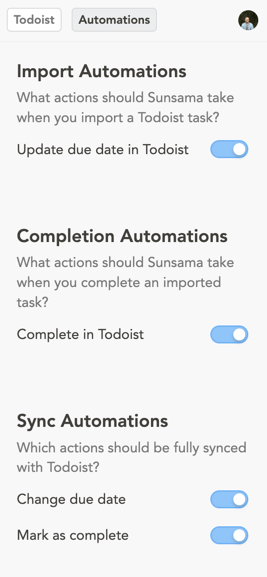
Import Automations
What actions should Sunsama take when you import a Todoist task?
- Update due date in Todoist — when you import a Todoist task, Sunsama sets its Todoist due date to match the date you’re planning to work on it.
Completion Automations
What actions should Sunsama take when you complete an imported task?
- Complete in Todoist — completing the task in Sunsama also completes it in Todoist.
Sync Automations
Which actions should be fully synced with Todoist?
- Change due date — keeps the due date in sync in both directions: changing it in either app updates the other. See uncheck this to fix a task fighting itself over its date below.
- Mark as complete — keeps completion status in sync in both directions: completing the task in either app completes it in the other.
All four toggles are on by default when you connect a Todoist account.
Troubleshooting
A duplicated task keeps changing its own date
If a Todoist task ends up linked to more than one Sunsama task (for example, duplicating an already-imported task, or importing the same Todoist task a second time), the two Sunsama tasks can fight over the date, moving either one pushes the shared Todoist due date, which then syncs back and moves both.
Go to the Todoist panel’s Automations tab and turn off Change due date under Sync Automations. This stops due-date syncing for your whole Todoist connection, so you’ll lose automatic due-date sync for all your Todoist tasks, not just the duplicated pair, but it’s the fastest fix available today.
My Todoist panel is empty; no tasks or projects are showing
This is probably due to Todoist’s low rate limit. If you have Todoist open in multiple places simultaneously (Sunsama panel, Todoist app or web page, etc), this almost always will overload the rate limit, and no more requests can be made and new tasks/updates won’t show.
The solution is to close wherever your Todoist is open and wait a minute or two. Then, try opening the Todoist panel in Sunsama and refreshing. Usually the rate limit will reset and you’ll be able to see your tasks again.
To prevent this occurring, limit the places where Todoist is open while using Sunsama.
Todoist tasks are getting auto-completed
When tasks originate from the calendar and are added to the task list, they will auto-complete when the end time passes. This happens for any task that comes from the calendar.
If you are using Todoist’s popular Google calendar integration, you’ll run into this issue when you do the following:
- Use Todoist to create an event on your Google calendar
- Import the calendar event as a task in Sunsama
That task will autocomplete in Sunsama. This workflow above is considered an anti-pattern in Sunsama, since Sunsama treats any event that originates from your calendar as a “meeting” rather than a “task”. An alternative would be to not use Todoist (or its Google calendar integration) to schedule your tasks to your calendar, and instead use Sunsama to schedule your tasks to your calendar directly:
So your workflow would look like:
- Import the Todoist task you want to work on as a task into Sunsama
- Drag that imported Todoist task to your calendar
You would no longer have to worry about autocomplete if you take that approach.
Some unsupported filters have been omitted
There are a couple of classes of filters that only work inside of Todoist’s UI and not in third-party apps like Sunsama:
- Filters that include the character
/. If you can remove the/character from your filter it should work. - Filters that include the
,which is often used to create visual sub-groups. We recommend using simpler filters inside Sunsama without the,for grouping.