
Importing Meetings
Add your meetings to your daily checklist.
When planning your day in Sunsama, you can pull meetings and events from your calendar into your task list. The daily task list serves as your source of truth. Importing events provides:
- A clear view of your daily workload
- Time spent in meetings added to your daily stats
- The satisfaction of checking off meetings as work
Importing events during planning
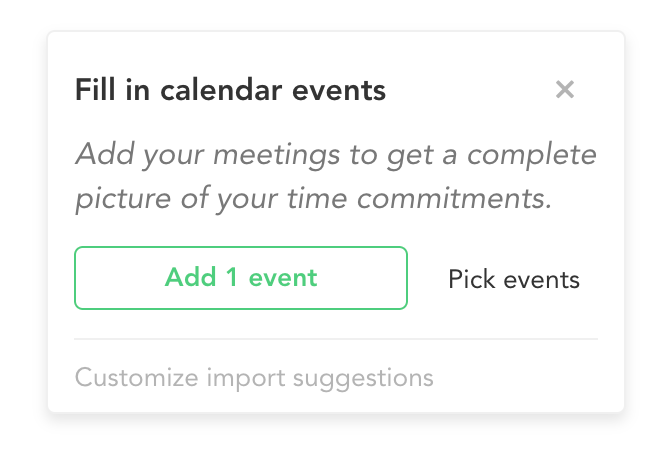
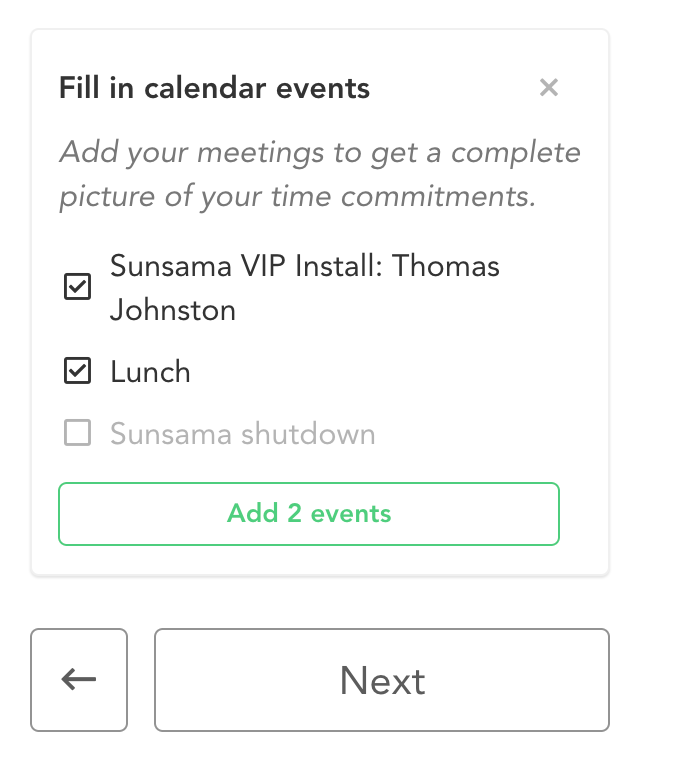
During the first step of daily planning, a prompt appears to “fill in calendar events” in the left panel.
You have two options:
- Click the green button to automatically import Sunsama’s suggested events
- Click “pick events” to manually select which events to import
Once ready, clicking the green button adds events to your task list and auto-sorts based on start times.
Importing events automatically
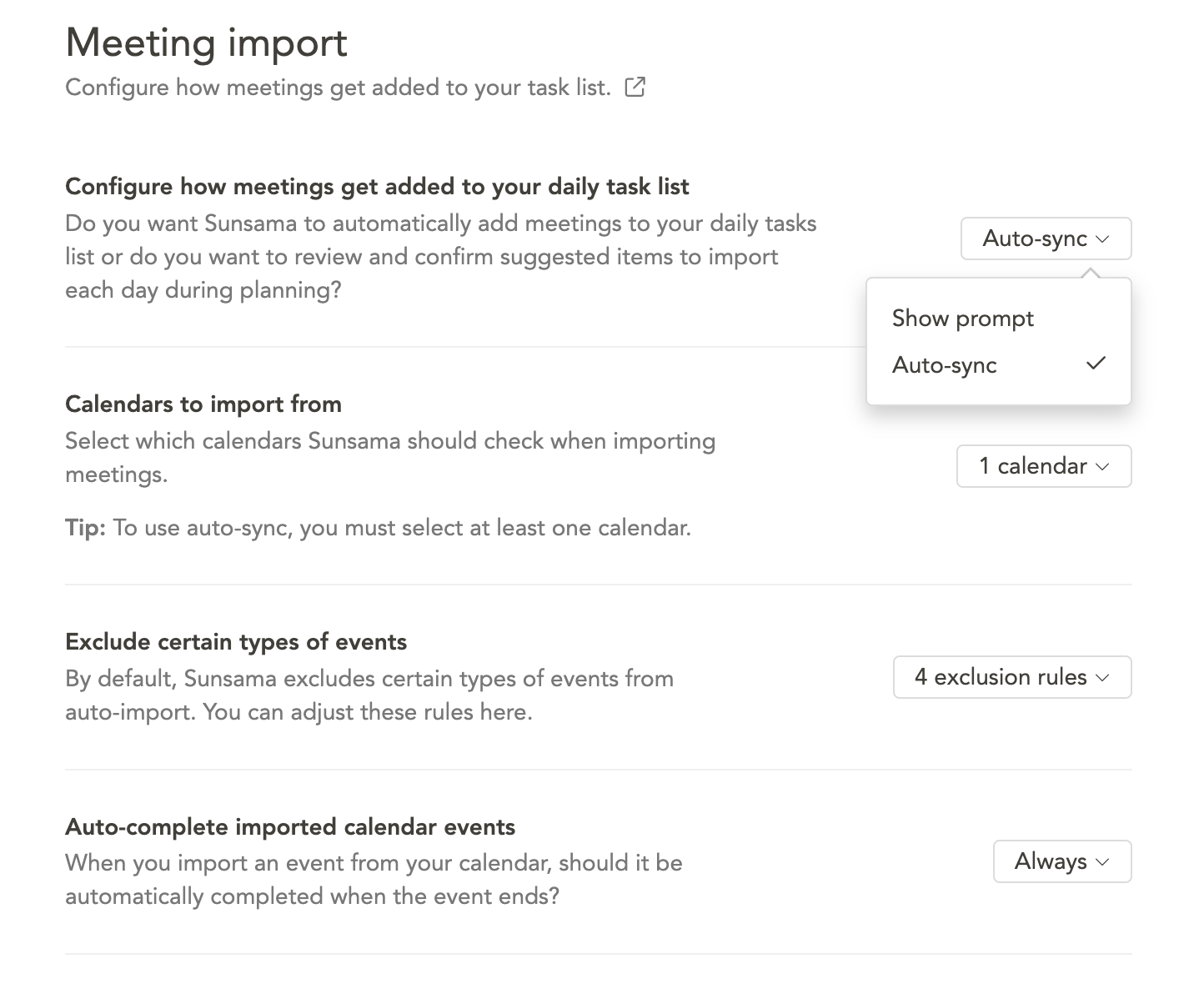
If you frequently accept the one-click import suggestion without modifications, you can enable auto-import by default.
Navigate to Calendar settings, scroll to Meeting Import, and change “Configure how meetings get added to your daily task list” to Auto-sync.
Customizing import behaviors
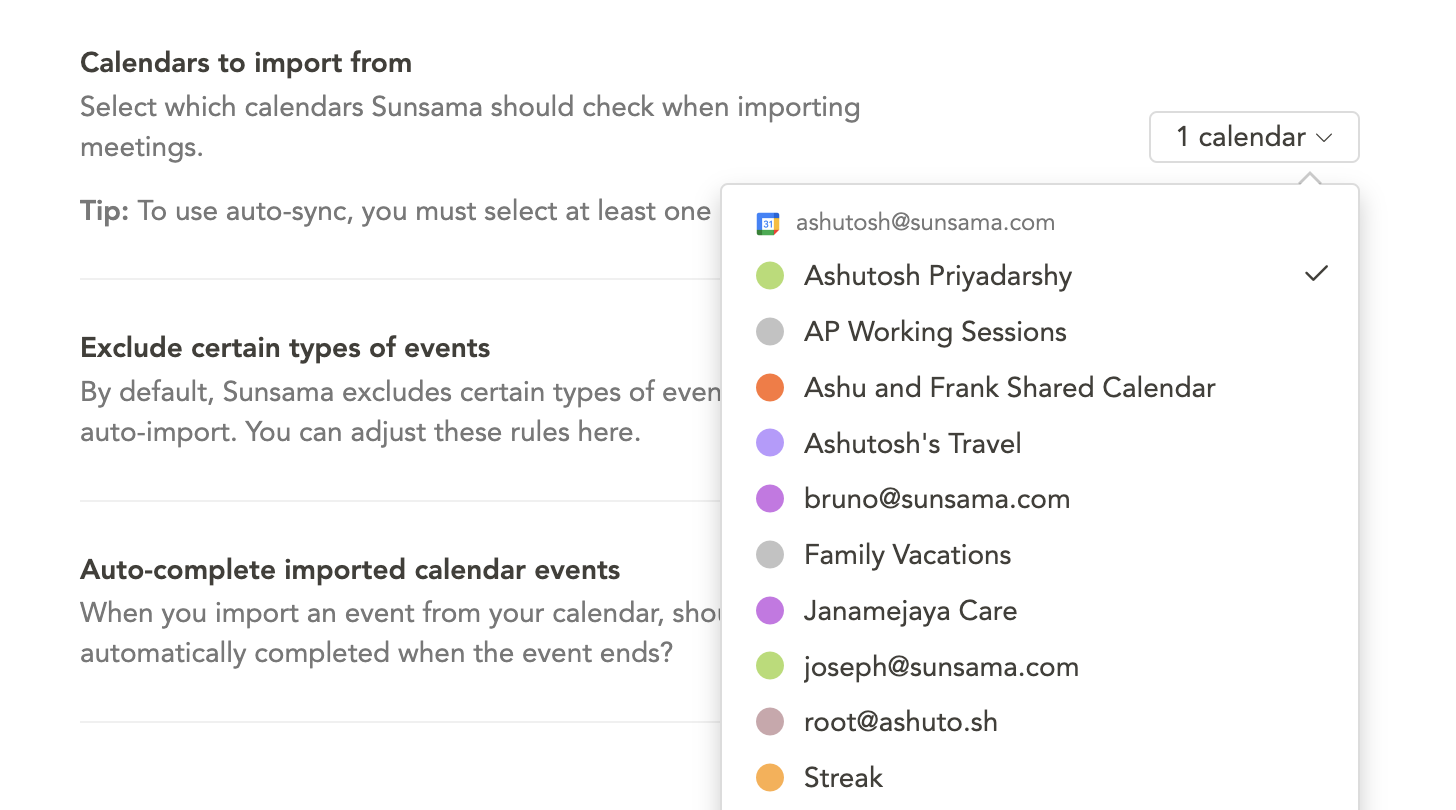
Calendars to import from
Select which calendars Sunsama checks when auto-syncing or suggesting events. If using auto-sync, at least one calendar must be selected.
For those maintaining reference calendars (events, birthdays, colleagues, significant others), use this setting to ensure suggestions include only relevant events.
If no calendars are selected, Sunsama defaults to suggesting based on currently visible calendars. In daily planning, edit visible calendars using the “…” menu at the top of the calendar view.
Exclude certain types of events
By default, Sunsama excludes many unhelpful event types. Toggle filters to include more types. With “Auto-sync” enabled, excluded events won’t be auto-synced. With “Show prompt,” these items won’t be selected by default.
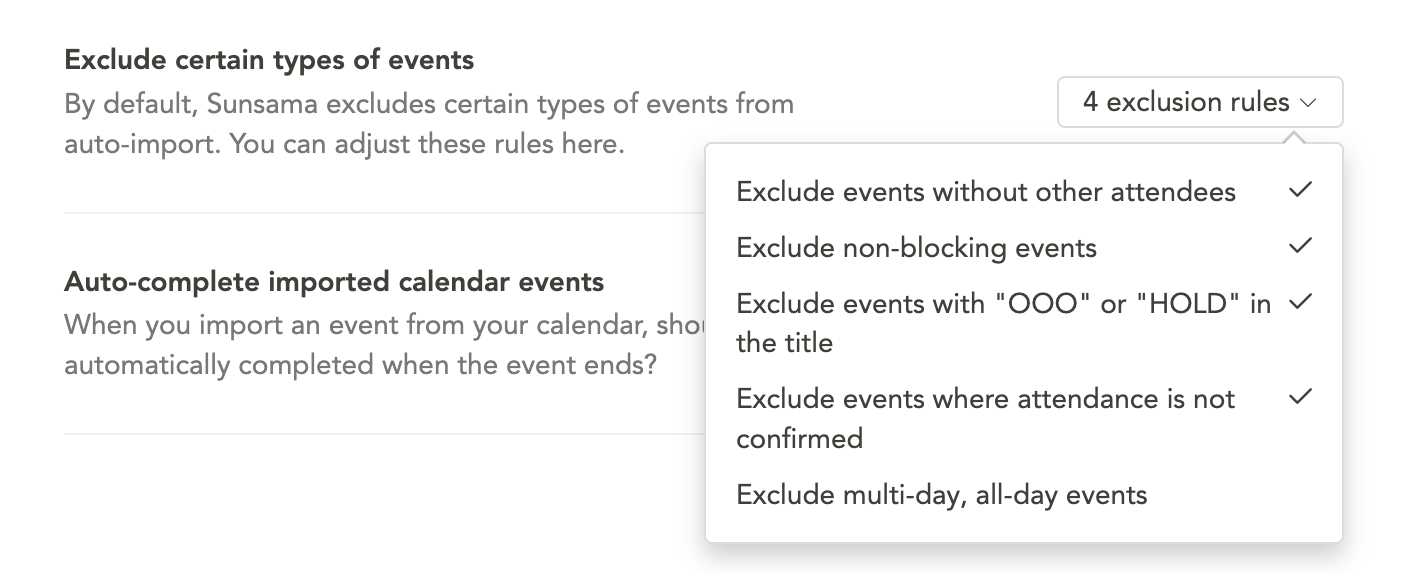
- Exclude events without other attendees – if toggled on, all events without other attendees are excluded from auto-import
- Exclude non-blocking events – events marked “transparent” or “non-blocking” are excluded
- Exclude events with “OOO” or “HOLD” in title – events containing this text are excluded. Most users should keep this enabled
- Exclude events where attendance is not confirmed – unconfirmed events are excluded. Keep enabled if frequently invited to meetings you don’t attend
- Exclude multi-day, all-day events – multi-day all-day events are excluded. Keep enabled if using your calendar’s all-day section for non-task annotations like travel days
Understanding autocompletion
By default, imported events and meetings are completed automatically when the calendar event’s end time passes, unless you are actively running a timer on that event.
If your calendar events often run longer than scheduled, times aren’t rigid, or you prefer checking items off manually, change the auto-completion setting from your account settings.

The three options are:
- Always – the default option; all items auto-complete when the event end time passes
- Never – auto-completion is turned off entirely
- Only if the event has invitees – events with invitees complete when the end time passes. Events without other invitees (self-tasks/reminders) won’t check off unless manually marked complete
The third option suits those whose personal calendar events are really tasks and reminders.
Removing an imported event
Right-click the task and click “Remove from tasks” to remove an event from your task list without deleting it from the underlying calendar.
Importing a single event
Hover over the calendar event and click “Add to tasks,” or open the event page and click “Add to tasks” from the header to add a specific event.
Best practices
- Importing events and meetings is crucial during daily planning. This updates your workload counter and includes meeting time in your daily stats.
- If your calendar contains many event-tasks rather than meetings with others, carefully review the auto-import configuration and auto-complete settings.