
Workspace Settings
Configure channels, schedules, members, privacy, billing, and enterprise features for your workspace.
Accessing Workspace Settings
There are two ways to access your workspace settings:
- Use the Command Palette to search for “workspace settings”
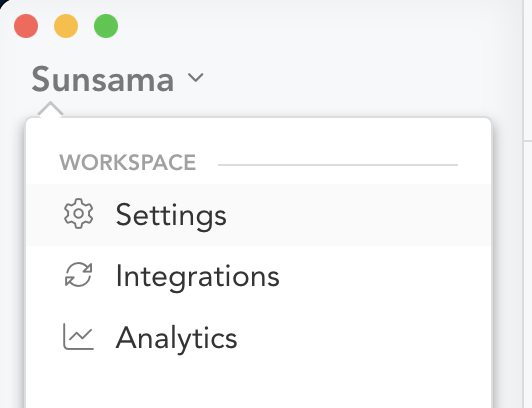
- Use the main dropdown in the app (in the top left corner)
Channels
On the Contexts & Channels page, you can edit and create your different contexts and channels.
Schedules
Use your Schedules page to tell Sunsama the hours you want to have tasks auto-scheduled during.
- Set up custom schedules for different days
- Set up custom schedules for channels and contexts to override your default hours
Members
In shared workspaces, owners and admins will see all members.
- Owners and admins can change another user’s status (except existing owners)
- An owner’s status can only be changed by the owner themselves making another user the owner. The owner would then become an admin.
- Owners and admins can remove users from the workspace (if the user has no other workspace and is not under SSO enforcement, Sunsama automatically preserves their account by creating a personal workspace for them, which they’ll be responsible for).
- Use the “Invite Teammates” option to add new members
Privacy
Here you will see a simple explanation of the privacy and visibility of the core features of Sunsama (Tasks, Calendars, etc.).
Disable link invites
If this is turned on, users can only join your workspace via email invite, not the URL link invite.
Billing
Click “Manage Billing” to access the billing portal where you can:
- Update billing information
- Manage your subscription
- View a log of workspace and subscription changes
- Access billing history
Your referral link is also displayed on the billing page.
Workspace Management
Rename the Workspace
Only the workspace owner can rename the workspace.
The name of your workspace is what appears in the slug after sunsama.com/group/. If you rename the workspace:
- Other users in the workspace will have to refresh for access
- Any bookmarks to your workspace will need to be updated
- New email forwarding addresses will also be generated
Leave the Workspace
For shared workspaces, if you leave:
- Teammates will no longer be able to see your tasks
- Calendar events created on the underlying calendar, notes, and comments on shared tasks are preserved
If you belong to another workspace: Your account stays active. Tasks and notes in the workspace you leave remain there, and you can be re-invited later to regain access.
If this is your only workspace: When you leave, Sunsama asks how you want to proceed:
- Leave and create a personal workspace (recommended): Your account is preserved. A new private workspace is created for you, and your tasks, channels, and Sunsama calendar are moved into it. Notes and comments on shared events with teammates remain in the team workspace.
- Leave without creating a personal workspace: Your Sunsama account is permanently deleted, and you lose access to all tasks and notes in that workspace. You cannot recover your data by rejoining later.
Delete the Workspace
If you are the owner or admin of a workspace, you can delete it entirely.
If you simply want to cancel your subscription, you can do that via “Billing” if you are an owner or admin, or by leaving the workspace if you are a member.
Enterprise
Configuring SSO
Prerequisites:
- Upgrade to an enterprise plan
- Configure your Identity Provider (IdP) before proceeding (e.g., Okta, Google, Azure)
Setup steps:
- Head to your Workspace Settings > Enterprise
- Copy the URL with the button labeled “Copy Setup URL” and send this URL to the relevant person on your IT team who can configure your IdP
- Follow the instructions in the setup portal. If you run into issues, reach out to us directly.
- Return to your Workspace Settings > Enterprise and you should see a toggle button appear for Enforcing SSO. Once configured, it may take a minute for the button to show.
- Your workspace is now SSO capable. Users can still log in with any existing login methods (e.g., Google, Microsoft, Email and Password) but they can also log in with SSO.
Enabling SSO Enforcement
Toggle the “Require SSO” button in the Enterprise section of your Workspace settings.
Once SSO is enforced:
- Users in your domain can only log in with SSO
- Users in your domain cannot reset a password, change their primary account email, or create new workspaces
- Only people in your organization’s approved domains can join workspaces managed by your organization
Disabling SSO Enforcement
If you disable SSO Enforcement while remaining on an Enterprise plan:
- All users in your workspace can use any previously set up login methods (e.g., Google, Microsoft)
- They will be able to create new workspaces
- They can reset their password and change their email address (which would allow them to transition their account out of your organization’s management)
Cancelling Your Enterprise Plan and User Lockouts
If you’d like to cancel an enterprise plan and allow individual users to own their individual accounts afterwards, make sure to disable SSO enforcement first. If you have any questions, reach out to support.