
Planned and Actual Times
Set time estimates and track actual time spent on tasks.
There are two types of “times” you can have entered on a task: planned time and actual time.
Planned time
Planned time is used to set time estimates on your individual tasks. The cumulative total of the planned times for your tasks make up your workload total for the day.
Set planned time on your tasks during daily planning or at any point during the day.
- Click on the clock icon on the task to add planned time
- Hover over or click on the task and type keyboard shortcut
W - During task creation, type
~then your planned time
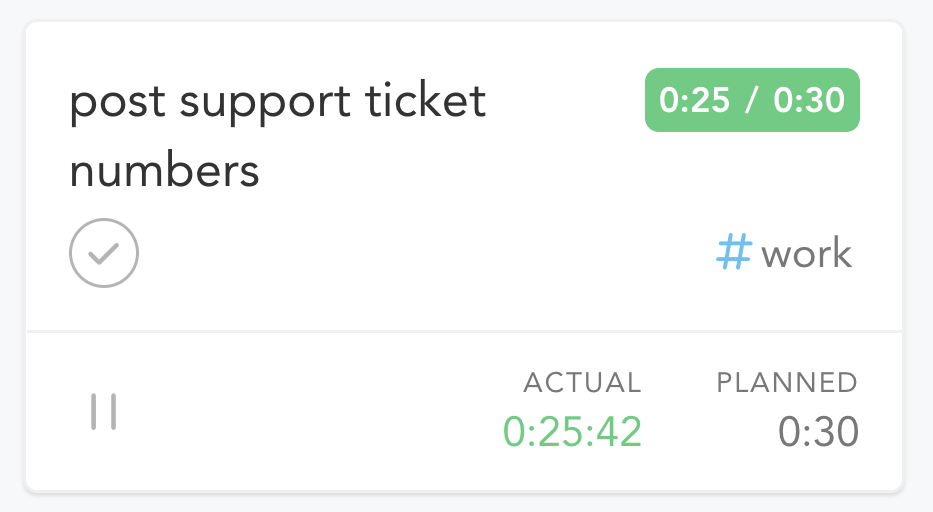
Actual time
Use actual time to record how long tasks actually take to complete. You can do this several ways:
- Click on the clock icon on a task to add actual time
- Hover over or click on the task and type keyboard shortcut
E - Use the Task Timer (
Spacebar)
If you complete the task without adding actual time, the planned time will count as actual time if you’ve enabled that setting in your account settings.
Task timer
Running the timer on a task while you work on it is a great way to record accurate actual time and to stay focused.
To use the task timer:
- Click on the clock icon on a task and click the triangle “play” button
- Hover over or click on a task and hit the
Spacebar
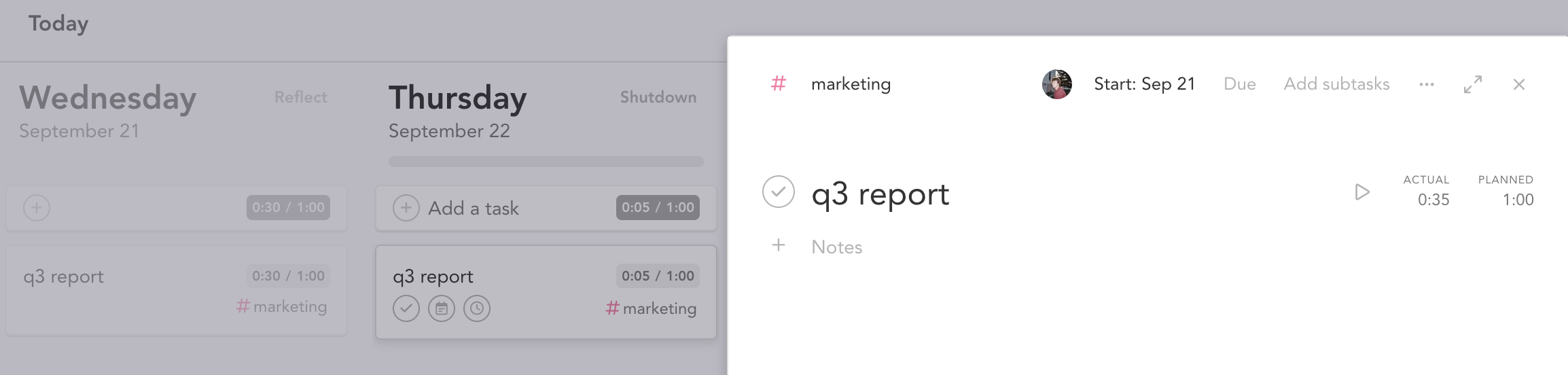
By default, when you start the task timer, you will enter Focus Mode for that task. You can disable this setting in your account settings.
Planned, actual, and task timer on subtasks
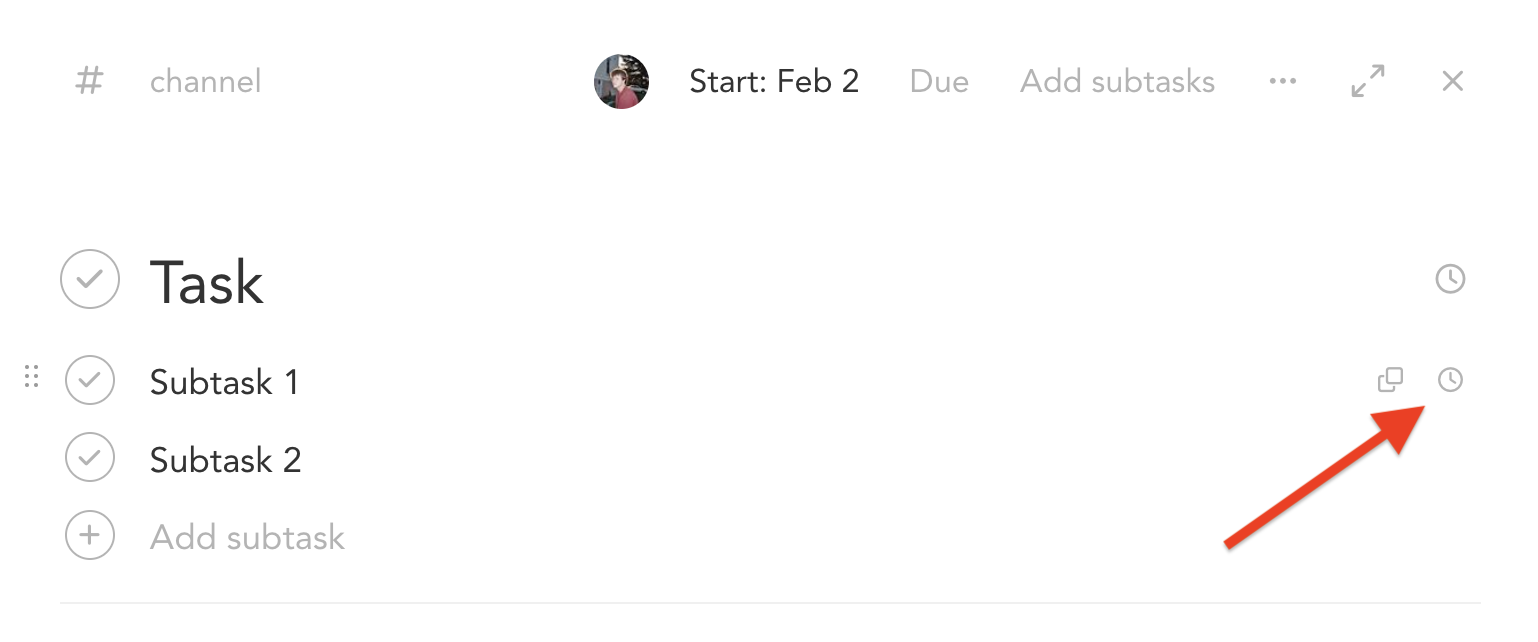
To add planned time, actual time, or run the timer on an individual subtask, open the task card and hover over the clock icon to reveal these fields for subtasks.
Different views of task time totals
If a task rolls over and/or has a working session on multiple days, the actual and planned times for a task will display depending on how you view the task.
In the main kanban home view as well as in focus mode, the task will display the actual and planned times for that day respectively.
However, if you click on the task and open up the whole task card, you’ll be viewing the cumulative totals for all the actual and planned times for all instances of that task.
Workload counter in daily columns
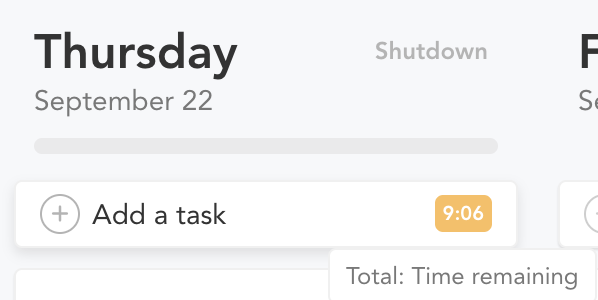
At the top of your daily column, you’ll see a time total. This is your workload counter, and you can click on this to cycle through three different views of your time:
Total: Time remaining
This is the cumulative total of all the remaining planned times of your uncompleted tasks.
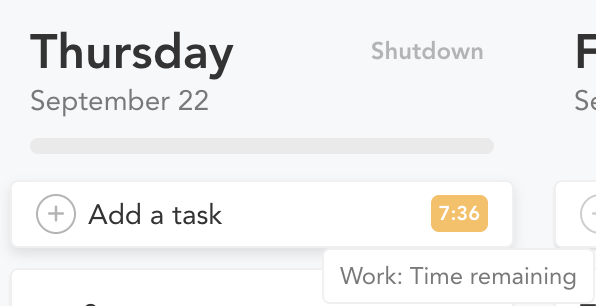
Work: Time remaining
This is the cumulative total of all the remaining planned times of your uncompleted tasks that are not assigned to a personal channel.
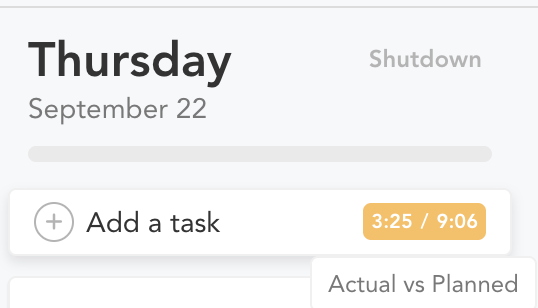
Actual vs. planned
The first number here is the sum of all the actual times on your tasks for the day. The second number is the sum of all of your planned times on your tasks for the day.
Workload threshold
If the sum of the planned times on tasks not assigned to personal channels approaches your workload threshold, your workload counter will show yellow. This is a visual indication that you have scheduled a workload that approaches but does not surpass your workload threshold for the day.
The workload counter will show red if your planned times exceed your workload threshold.